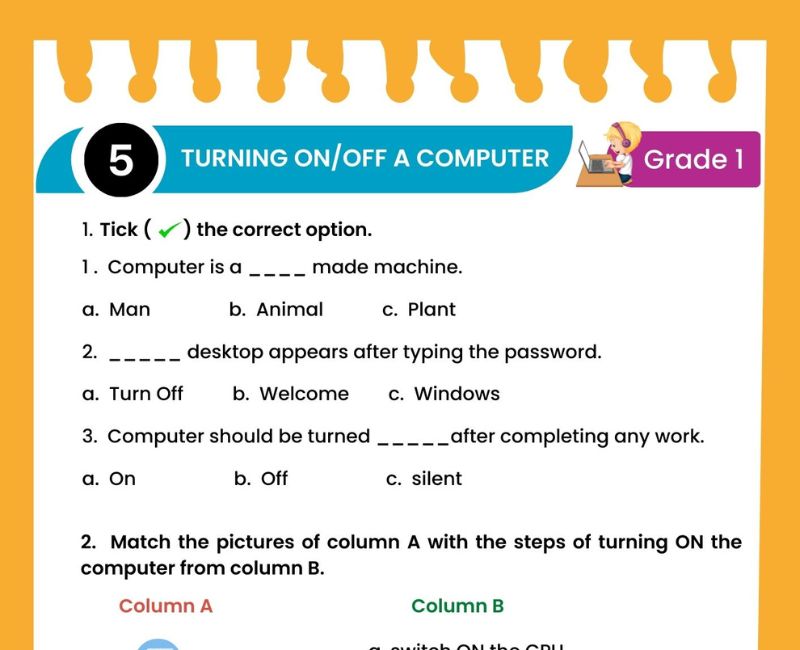
💻 Turning On and Off a Computer Worksheet for Class 1
Learn how to start a computer, use it carefully and shut it down safely!
🎯 20-Question Online Quiz | ⏱️ 20 Minutes | 📝 Printable Practice
CBSE Class 1 Computer Studies – Starting and Shutting Down a Computer
Question 1 of 20
Turning On and Off a Computer for Class 1 Worksheet PDF
Have you ever entered your school computer lab and seen a computer with a dark screen? Before using a computer, we need to start it correctly. When our work is finished, we should shut it down properly.
This Turning On and Off a Computer for Class 1 worksheet helps children learn the basic steps of starting and shutting down a computer. The lesson uses simple language and familiar examples so young students can understand how to handle a computer responsibly.
Students learn about the power button, monitor, desktop screen, Start menu and Shut down option. They also learn why it is important to wait while a computer starts or shuts down.
The worksheet can be used during a computer lab lesson, as classroom revision or for homework. Parents and teachers should supervise children when they practise using a real computer.
The printable activities are supported by additional sequencing questions, fill-in-the-blanks, true-or-false exercises, matching tasks and a free 20-question online quiz.
Learning to turn a computer on and off is one of the first practical computer skills for Class 1. It helps children become familiar with basic computer operations and encourages safe digital habits.
What Does Turning On a Computer Mean?
Turning on a computer means starting the machine so that it becomes ready for use. This process is also called starting up or booting.
When we start a computer, its system begins loading. After it is ready, we may see a sign-in screen or the desktop, depending on how the computer is set up.
🔘 Power button: Used to start the computer.
⏳ Starting up: The computer loads its system.
🖥️ Desktop: A main screen that may appear when the computer is ready.
Children should wait patiently during startup and follow their teacher's instructions.
Steps to Turn On a Desktop Computer for Class 1
The exact procedure can vary depending on the computer and its power setup. In a school lab, an adult should ensure that the computer has a safe power supply before children begin.
Make sure you have permission to use the computer.
An adult checks that the computer is safely connected to power.
Press the computer's power button once as instructed.
If the monitor has a separate power button and is off, use it as instructed.
Allow the computer to finish loading.
Use the computer when the teacher says it is ready.
Remember: Do not touch electrical sockets, plugs, cables or power switches without adult supervision.
What Happens When We Turn On a Computer?
When the computer starts, several things happen automatically.
1️⃣ The computer receives power.
2️⃣ Its internal parts begin working.
3️⃣ The operating system starts loading.
4️⃣ A sign-in screen or desktop may appear.
5️⃣ The computer becomes ready for use.
Some computers start quickly, while others take longer. Children should not repeatedly press the power button while waiting.
What Is the Desktop Screen?
The desktop is a main screen that appears after starting and signing in to many computers. It may show small pictures called icons, a taskbar and a background picture.
🖼️ Wallpaper: The background picture.
📁 Icons: Small pictures representing programs, files or shortcuts.
📌 Taskbar: A bar used to access programs and system features on Windows computers.
Some computers show a sign-in screen first. A teacher may need to help students sign in before they can see the desktop.
What Does Shutting Down a Computer Mean?
Shutting down means closing the computer's running system properly so that it can turn off safely.
Before shutting down, we should save our work and close the programs we are using.
On a typical Windows computer, we can choose the Shut down option from the Start menu's power controls.
💾 Save your work.
❎ Close open programs.
🪟 Open the Start menu.
⏻ Select Power, then Shut down.
⏳ Wait until the computer finishes shutting down.
The exact appearance of the menus may differ between Windows versions or other operating systems.
Steps to Turn Off a Computer Properly
Save your drawing, document or activity if needed.
Close the programs you have finished using.
On Windows, open the Start menu.
Choose Power and then Shut down.
Allow the computer to turn off completely.
Ask your teacher whether any additional equipment needs to be turned off.
Children should not switch off the wall socket or unplug the computer themselves. An adult should handle electrical equipment.
Turning On and Turning Off a Computer – Difference
| Turning On | Turning Off |
|---|---|
| Starts the computer | Ends the computer session |
| Uses the power button to start | Normally uses the Shut down option |
| The operating system loads | The operating system closes |
| Computer becomes ready for work | Computer stops running |
| We wait for startup to finish | We wait for shutdown to finish |
Important: Turning off only the monitor does not necessarily shut down the computer. The monitor displays information, while the computer's system unit or laptop contains the components that perform processing.
Shut Down, Restart and Sleep – Simple Meanings
Students may see different power options on a computer. These options do not all mean the same thing.
Closes the running system and turns off the computer.
Shuts down the running system and starts it again.
Uses a low-power mode so the computer can resume more quickly.
Turns off the display but may leave the computer running.
For Class 1, students should mainly learn the difference between starting the computer and shutting it down properly.
Turning On and Off a Computer Worksheet – Questions and Answers
Exercise 1: Fill in the Blanks
- We press the ______ button to start a computer.
- Starting a computer is also called ______.
- We should ______ while the computer starts.
- The ______ displays pictures and text.
- We should ______ our work before shutting down.
- On Windows, we can use the ______ menu to shut down.
- We choose the ______ option to turn off the computer properly.
- We should not pull out the computer's ______.
- The ______ screen may appear after startup and sign-in.
- Children should follow their ______ instructions in the computer lab.
Show Exercise 1 Answers
1. power; 2. booting; 3. wait; 4. monitor; 5. save; 6. Start; 7. Shut down; 8. plug; 9. desktop; 10. teacher's.
Exercise 2: True or False
- We use the power button to start a computer.
- We should press the power button repeatedly while the computer starts.
- We should save our work before shutting down.
- Turning off the monitor always shuts down the computer.
- Shut down is a computer power option.
- We should wait for shutdown to finish.
- Children should touch electrical plugs without permission.
- The desktop may appear when a computer is ready.
- Restart starts the computer again.
- It is safe to pull out cables while the computer is running.
Show Exercise 2 Answers
1. True; 2. False; 3. True; 4. False; 5. True; 6. True; 7. False; 8. True; 9. True; 10. False.
Exercise 3: Match the Following
| Column A | Column B |
|---|---|
| 1. Power button | A. Shows pictures |
| 2. Monitor | B. Starts the computer |
| 3. Shut down | C. Keeps our work for later |
| 4. Save | D. Turns off the running system |
| 5. Restart | E. Starts the computer again |
Show Exercise 3 Answers
1-B, 2-A, 3-D, 4-C, 5-E.
Exercise 4: Arrange the Steps in Correct Order
A. Starting a computer
- Wait for the computer to become ready.
- With permission, press the computer's power button.
- Begin using the computer.
Show Starting Order
2 → 1 → 3
B. Shutting down a Windows computer
- Select Shut down from the power menu.
- Save your work and close programs.
- Wait until the computer turns off.
- Open the Start menu and its power options.
Show Shutdown Order
2 → 4 → 1 → 3
Exercise 5: Answer in One Sentence
- What is the use of the power button?
- What is booting?
- What should we do before shutting down a computer?
- What is the use of the Shut down option?
- Why should we wait while a computer starts?
- Should children touch electrical plugs without adult supervision?
Show Exercise 5 Answers
- The power button is used to start a computer.
- Booting is the process of starting a computer and loading its system.
- We should save our work and close programs.
- The Shut down option closes the running system and turns off the computer.
- We wait so the computer can finish loading and become ready.
- No, children should not handle electrical plugs without adult supervision.
Fun Activities for Turning On and Off a Computer
1. Find the Power Button
Show children a computer or a clear picture. Ask them to identify the power button. Explain that its location may vary on different devices.
2. Put the Steps in Order
Give students cards showing the actions of starting and shutting down a computer. Ask them to arrange the cards in the correct sequence.
3. Role-Play Computer Startup
One student pretends to be the computer and another gives instructions. Students practise remembering that startup takes time.
4. Identify the Correct Action
Ask children whether they should save their work, pull out the plug or press the power button many times. Discuss the safe choice.
5. Supervised Computer Lab Practice
With teacher guidance, students observe how a computer starts and how the Shut down option works. Electrical connections remain the responsibility of adults.
6. Draw the Power Symbol
Show the familiar power symbol ⏻ and ask students to recognise it on a computer or device.
Computer Lab Safety Rules for Class 1
✅ Ask permission before starting a computer.
✅ Keep your hands dry while using computer equipment.
✅ Press the power button gently and only as instructed.
✅ Wait patiently during startup and shutdown.
✅ Save your work before closing the computer.
✅ Ask your teacher if the computer shows an unfamiliar message.
❌ Do not touch sockets, plugs or electrical switches.
❌ Do not pull computer wires.
❌ Do not repeatedly press the power button.
❌ Do not unplug the computer to shut it down.
If a computer is frozen or not responding, children should ask an adult for help rather than trying to force it off themselves.
Why Is Learning to Turn On and Off a Computer Important?
Learning how to start and shut down a computer is an important beginning skill in Computer Studies. It introduces children to the idea that electronic devices need to be operated in an orderly and careful way.
Young learners may already have experience with smartphones or tablets, but a desktop computer can look different. It may have a separate monitor, system unit, keyboard and mouse. Understanding how these parts work together helps children feel more confident during computer lab activities.
The lesson also develops sequencing skills. Students learn that some actions must happen before others. For example, a computer needs to finish starting before it is ready for use. Similarly, students should save their work before choosing Shut down.
These sequences can be practised using picture cards, oral instructions and simple written exercises. Children can explain the steps in their own words or arrange pictures in the correct order.
Learning the difference between turning off a monitor and shutting down the computer prevents a common misunderstanding. The display can become dark while the computer is still running. A proper shutdown closes the computer's operating system.
The topic also supports responsible digital habits. Students learn to ask permission before using equipment, handle buttons gently and wait patiently instead of pressing controls repeatedly.
Safety is especially important for Class 1. Children should never be asked to manage wall sockets, electrical cables or plugs independently. Parents and teachers should prepare the equipment and supervise practical activities.
Printable worksheets provide a useful way to revise these steps without requiring students to operate a computer every time. Matching exercises and true-or-false questions can reinforce safe habits.
The 20-question online quiz provides additional revision through multiple-choice questions. Students can check their score and review explanations after completing the quiz.
By the end of the lesson, children should be able to identify the power button, explain the meaning of startup and shutdown, and describe a safe sequence for using a computer with adult guidance.
Teaching Tips for Parents and Teachers
Begin by showing children the power button on a computer. Explain that pressing the button starts the computer and that the machine needs time to become ready.
Demonstrate the startup process slowly. Ask students to observe what appears on the screen and explain that some computers show a sign-in screen before the desktop.
Next, show how to save a simple drawing or document. Explain why saving is important before ending a computer session.
Demonstrate the normal Windows shutdown procedure using the Start menu and Power option. Mention that other operating systems may have different menus.
Use sequencing activities to check understanding. Children should practise describing what happens first, next and last.
Finally, encourage students to complete the worksheet and online quiz. Discuss incorrect answers, especially those involving safe handling of power buttons and electrical equipment.
Related Class 1 Computer Worksheets
Frequently Asked Questions About Turning On and Off a Computer
How do we turn on a computer for Class 1?
With teacher or parent permission, press the computer's power button once and wait for the computer to finish starting.
How do we turn off a computer properly?
Save your work, close programs and use the operating system's Shut down option. Wait until the computer finishes shutting down.
What is the first step in starting a computer?
First, make sure an adult has prepared the computer and given permission to use it.
What is a power button?
A power button is a control used to start a computer. It often has a symbol resembling ⏻.
What is booting for Class 1?
Booting means starting a computer and loading the system so it becomes ready for use.
What is shutting down a computer?
Shutting down means closing the running computer system properly so that the computer can turn off.
Why should we save our work before shutting down?
Saving helps keep our drawings, documents and other work for later use.
What is the Start menu?
The Start menu is a feature on Windows computers that helps users open programs, access settings and find power options.
What is the desktop screen?
The desktop is a main screen on many computers that may show icons, a background and a taskbar.
Is turning off the monitor the same as shutting down?
No. Turning off the monitor may only turn off the display, while the computer can continue running.
What is the difference between shutdown and restart?
Shutdown turns off the computer's running system. Restart closes the running system and starts it again.
What happens when a computer starts?
The computer's components begin working and its operating system loads.
Should children unplug a computer to turn it off?
No. Children should use the normal shutdown procedure under adult guidance and should not handle electrical plugs.
Why is proper shutdown important?
Proper shutdown helps close programs and the operating system safely. Saving work first helps prevent losing unsaved changes.
Can Class 1 students practise turning on and off a computer online?
Yes. This page includes a 20-question quiz with a timer, score, explanations and a retake option.
🎯 Online Turning On and Off a Computer Quiz for Class 1 – Printable PDF and Computer Practice
Use this Turning On and Off a Computer worksheet for Class 1 alongside the free interactive quiz to practise identifying the power button, understanding startup, saving work and following the correct shutdown procedure. Students can answer 20 multiple-choice questions, check their scores and review explanations. This combination of a printable Turning On and Off a Computer Class 1 worksheet PDF and online Computer Studies practice supports regular revision at home and in the classroom.
↑ Start the Online Turning On and Off a Computer Quiz Download