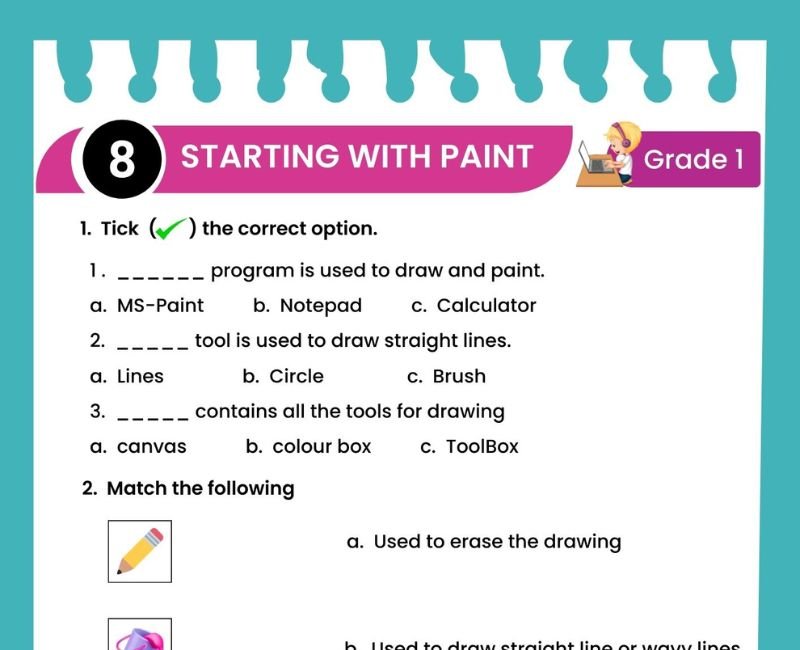
🎨 MS Paint Worksheet for Class 1 Kids with Online Quiz
Learn to draw, colour, erase and create beautiful pictures using Microsoft Paint!
🎯 20-Question Online Quiz | ⏱️ 20 Minutes | 🖌️ Interactive Drawing Activities
CBSE Class 1 Computer Studies – Starting with Paint
Question 1 of 20
MS Paint Worksheet for Class 1 Kids – Printable PDF Practice
Do you enjoy drawing houses, trees, flowers and colourful pictures? You can also create drawings on a computer using a program called Microsoft Paint, commonly known as MS Paint.
This MS Paint worksheet for Class 1 kids introduces young learners to basic computer drawing. Children learn about the Paint window, drawing area, Pencil tool, Brushes, Eraser, Fill with Color, Shapes, Text and the Save option.
MS Paint is a simple drawing program that allows students to make pictures using a mouse. They can draw lines, colour shapes, erase mistakes and save their artwork to view later.
For example, a student can draw a house using a rectangle and triangle, add a circular sun, draw green grass and fill the sky with a suitable colour.
The worksheet supports CBSE Class 1 Computer Studies lessons on starting with Paint. Teachers can use it to introduce the basic tools before allowing students to practise on a computer.
Children can complete fill-in-the-blanks, true-or-false questions, matching activities and simple drawing challenges. The free 20-question online quiz provides additional revision with a timer, score and answer explanations.
Students can also use the interactive drawing activity below to watch a house being created, colour its parts and practise drawing on a mini Paint board.
What Is MS Paint for Class 1?
MS Paint is a drawing program used to create and edit simple pictures on a computer. It is included with many Windows computers.
✏️ Draw pictures using the Pencil tool.
🖌️ Make colourful strokes using Brushes.
🪣 Fill enclosed areas with colour.
🧽 Remove unwanted parts using Eraser.
🔺 Draw circles, rectangles and other shapes.
💾 Save your drawing for later.
MS Paint is useful for children because they can practise drawing without needing advanced design skills.
Parts of the MS Paint Window
The blank space where we create our picture.
Options such as Pencil, Fill, Eraser and Text.
A palette used to choose colours for drawing.
Ready-made shapes such as rectangles, ovals and lines.
Provides options such as New, Open and Save in many versions.
Provides different drawing strokes and styles.
The position and appearance of these controls may differ between versions of Paint.
Important MS Paint Tools and Their Uses
1. Pencil Tool ✏️
The Pencil tool helps us draw freehand lines. Children can use it to draw grass, roads, stars or outlines of simple pictures.
2. Brushes Tool 🖌️
Brushes let us draw strokes with different appearances. Students can select a brush and create colourful lines.
3. Eraser Tool 🧽
The Eraser tool removes parts of a drawing. It is useful when we make a mistake.
4. Fill with Color Tool 🪣
Fill with Color is used to fill an area with the selected colour. It works best when the area has a closed boundary.
5. Shapes Tool 🔺
The Shapes section helps us draw straight lines, rectangles, ovals and other ready-made shapes.
6. Text Tool 🔤
The Text tool allows us to add words to a picture.
7. Color Picker 🎨
The Color Picker tool can select a colour already present in the picture.
8. Magnifier or Zoom 🔍
Zoom helps us see the drawing area larger or smaller without necessarily changing the actual picture size.
MS Paint Tools Chart for Class 1
| Tool | Use | Practice |
|---|---|---|
| Pencil | Draw freehand lines | Draw grass |
| Brushes | Make different strokes | Draw a rainbow |
| Eraser | Remove parts of a picture | Erase an extra line |
| Fill with Color | Fill an area with colour | Colour the sun |
| Shapes | Draw ready-made shapes | Draw a house |
| Text | Add words | Write your name |
| Color Picker | Select a colour from the picture | Match an existing colour |
| Zoom | Change viewing size | Look closely at a drawing |
🎨 Interactive MS Paint Activity for Class 1
Watch a house being drawn, colour the picture and create your own drawing using a mini Paint board!
🏠 Activity 1: Watch the House Drawing
Press Play Animation to see how a colourful house is created step by step.
Ready to draw!
🌈 Activity 2: Click to Colour the House
Select a colour and then click or tap the roof, walls, door, windows, sun or grass.
Selected colour: Pink. Choose a part of the house!
✏️ Activity 3: Mini MS Paint Drawing Board
Draw your own house, garden, flower or rainbow using the tools below.
Choose a colour:
Pencil selected. Start drawing!
Tip: Select Rectangle or Circle, then press and drag to draw a shape. Eraser removes marks by drawing white over them. Undo reverses the most recent drawing action.
📝 Learn MS Paint Step by Step
- Watch the animated house drawing.
- Choose colours and colour the house yourself.
- Use Pencil to draw freehand lines.
- Use Rectangle and Circle to make shapes.
- Use Eraser to correct mistakes.
- Use Undo to reverse an action.
- Save your drawing as a PNG picture.
How to Save a Drawing in MS Paint
Saving helps us keep our drawing so that we can open it again later.
1️⃣ Finish your drawing.
2️⃣ Open the File menu or choose the Save option.
3️⃣ Choose a location if the computer asks.
4️⃣ Type a suitable file name.
5️⃣ Select Save.
For a new drawing, Paint may ask where to save it and which file format to use. Teachers can help children with these steps.
Remember: The Save command keeps our work. The Eraser tool only removes part of the picture; it does not delete the saved file.
MS Paint Worksheet for Class 1 – Questions and Answers
Exercise 1: Fill in the Blanks
- MS Paint is a ______ program.
- We use the ______ tool to draw freehand lines.
- The ______ tool removes unwanted parts of a drawing.
- The ______ with Color tool fills an enclosed area.
- We use ______ to draw ready-made circles and rectangles.
- The ______ tool helps us write words in a picture.
- The ______ option keeps our drawing for later.
- We can select different ______ from the colour palette.
- The blank place where we draw is called the drawing ______.
- We can draw a sun using the ______ shape.
Show Exercise 1 Answers
1. drawing; 2. Pencil; 3. Eraser; 4. Fill; 5. Shapes; 6. Text; 7. Save; 8. colours; 9. area; 10. Oval.
Exercise 2: True or False
- MS Paint can be used to create pictures.
- The Eraser tool is used to type words.
- We can draw rectangles using Shapes.
- The Pencil tool helps draw freehand lines.
- Fill with Color is used to print a drawing.
- The Text tool adds words to a picture.
- We can use different colours in Paint.
- Saving a drawing helps us open it again later.
- MS Paint can only draw black lines.
- The Brushes tool can create different drawing strokes.
Show Exercise 2 Answers
1. True; 2. False; 3. True; 4. True; 5. False; 6. True; 7. True; 8. True; 9. False; 10. True.
Exercise 3: Match the Following
| Column A | Column B |
|---|---|
| 1. Pencil | A. Remove part of a picture |
| 2. Eraser | B. Keep a drawing for later |
| 3. Fill with Color | C. Draw freehand lines |
| 4. Text | D. Fill an area with colour |
| 5. Save | E. Add words |
Show Exercise 3 Answers
1-C, 2-A, 3-D, 4-E, 5-B.
Exercise 4: Choose the Correct Answer
- Which program helps us draw pictures? (MS Paint / Calculator)
- Which tool removes unwanted marks? (Eraser / Text)
- Which tool draws freehand lines? (Pencil / Save)
- Which tool adds words? (Text / Fill)
- Which option keeps our work? (Save / Erase)
- Which tool fills a closed shape with colour? (Fill with Color / Magnifier)
Show Exercise 4 Answers
1. MS Paint; 2. Eraser; 3. Pencil; 4. Text; 5. Save; 6. Fill with Color.
Exercise 5: Answer in One Sentence
- What is MS Paint?
- What is the use of the Pencil tool?
- What is the use of the Eraser tool?
- What is the use of Fill with Color?
- Why do we save a drawing?
- Name two shapes that can be drawn in MS Paint.
Show Exercise 5 Answers
- MS Paint is a computer drawing program.
- The Pencil tool helps us draw freehand lines.
- The Eraser tool removes unwanted parts of a drawing.
- Fill with Color fills an area with the selected colour.
- We save a drawing to keep it for later.
- We can draw rectangles and ovals.
Fun MS Paint Activities for Class 1
1. Draw a Smiling Face 😊
Use an Oval shape to draw a face. Add two small eyes and a curved smile. Colour the face yellow.
2. Make a Colourful Rainbow 🌈
Use Brushes or curved lines to draw a rainbow. Choose red, orange, yellow, green, blue and other colours.
3. Draw a Garden 🌸
Draw flowers, green grass, butterflies and a bright sun using Pencil, Brushes and Shapes.
4. Create a Shape House 🏠
Use rectangles, lines and a roof to make a house. Colour each part differently.
5. Colour a Balloon 🎈
Draw a closed oval and a string. Use Fill with Color to colour the balloon.
6. Write Your Name ✍️
Use the Text tool to add your name below a drawing. Ask your teacher for help with text size and colour.
7. Correct a Drawing 🧽
Make an extra line using Pencil. Then use Eraser to remove it carefully.
8. Save Your Artwork 💾
Save a completed picture using a simple name such as "My Garden" or "My Rainbow".
Good Habits While Using MS Paint
✅ Hold and move the mouse gently.
✅ Select the correct tool before drawing.
✅ Use different colours creatively.
✅ Save your artwork before closing Paint.
✅ Ask your teacher before deleting or replacing files.
✅ Practise patiently when a drawing is difficult.
❌ Do not click unfamiliar settings without permission.
❌ Do not pull the mouse or keyboard cables.
❌ Do not close the program before saving important work.
Benefits of MS Paint Worksheets for Class 1 Students
MS Paint is a useful introduction to digital drawing for young children. It allows students to create colourful pictures using simple computer tools. Instead of only observing a computer, children can actively make something of their own.
Learning MS Paint helps develop mouse control. Children practise moving the pointer, clicking tools, dragging to create shapes and selecting colours. These actions strengthen their familiarity with basic computer operations.
Drawing shapes in Paint also connects with Mathematics. Students can recognise circles, rectangles, triangles and lines while creating pictures of houses, gardens and other familiar objects.
Colour selection encourages children to identify and compare colours. They can choose colours for different parts of a drawing and understand how Fill with Color works inside enclosed boundaries.
The Pencil and Brushes tools support creative expression. Students can draw freely rather than following only one fixed design. A simple drawing activity can become an opportunity to explore different ideas.
The Eraser tool introduces the concept of correcting mistakes. Children learn that they can improve their drawings by making changes. They do not need to start again whenever a small error occurs.
Saving introduces an important digital habit. Students begin to understand that computer work can be stored and opened later. This is a useful foundation for working with files in higher classes.
Printable MS Paint worksheets reinforce these lessons without requiring constant access to a computer. Students can identify tools, match functions, answer questions and plan drawings on paper.
Teachers can combine worksheets with short computer lab sessions. Demonstrating one tool at a time helps children understand the purpose of each feature before they attempt more complex pictures.
The online quiz provides additional revision through 20 multiple-choice questions. Students can check their scores and read explanations for incorrect answers.
By the end of the lesson, Class 1 students should be able to identify important Paint tools, explain their basic uses and create a simple drawing with teacher guidance.
Teaching Tips for Parents and Teachers
Begin by showing students the Paint window and explaining that the blank drawing area is where pictures are created.
Introduce the Pencil tool first. Allow children to draw simple lines and shapes using the mouse.
Next, demonstrate the Eraser tool. Show how it removes an unwanted mark from a drawing.
Introduce Shapes and Fill with Color using a closed circle or rectangle. Explain why a shape should have a complete boundary before filling it.
Show students how to use Brushes and select different colours. Encourage them to experiment with simple designs.
Finally, demonstrate the Save option and explain that saving keeps their artwork for later.
Use the worksheet questions for revision and the online quiz to assess understanding. Provide extra practical support to students who find mouse movement or colour selection difficult.
Related Class 1 Computer Worksheets
Frequently Asked Questions About MS Paint for Class 1
What is MS Paint for Class 1?
MS Paint is a computer drawing program used to create and colour simple pictures.
What is the use of MS Paint?
MS Paint is used to draw, colour and edit pictures on a computer.
What is the Pencil tool?
The Pencil tool helps us draw freehand lines.
What is the Eraser tool?
The Eraser tool removes unwanted parts of a drawing.
What is the Fill with Color tool?
It fills an area with the selected colour, usually working best with a closed boundary.
What is the use of Brushes in Paint?
Brushes allow us to create different drawing strokes.
What is the Shapes tool?
The Shapes section helps us draw ready-made shapes such as rectangles, lines and ovals.
What is the Text tool?
The Text tool adds words or letters to a picture.
What is the drawing area in MS Paint?
The drawing area is the space where we create and edit our pictures.
How do we draw a circle in MS Paint?
We can select the Oval shape and drag the mouse to draw it. Holding Shift while drawing can help make a circle in many versions.
How do we colour a shape in Paint?
Choose a colour, select Fill with Color and click inside a closed shape.
How do we save a drawing in MS Paint?
Use the Save option, enter a file name when asked and choose a suitable location.
Can Class 1 students draw a house in Paint?
Yes. They can combine rectangles, lines, ovals and other shapes to draw a simple house.
Why is MS Paint useful for young children?
It helps children practise mouse control, drawing, colour recognition and basic computer skills.
Does this page include an MS Paint online quiz?
Yes. The page includes a 20-question online quiz with a timer, score, explanations and retake option.
🎯 Online MS Paint Quiz for Class 1 – Printable PDF and Computer Practice
Use this MS Paint worksheet for Class 1 kids alongside the free interactive quiz to practise identifying the Pencil, Brushes, Eraser, Fill with Color, Shapes, Text and Save tools. Students can answer 20 multiple-choice questions, check their scores and review explanations. This combination of a printable MS Paint Class 1 worksheet PDF and online Computer Studies practice supports regular revision at home and in the classroom.
↑ Start the Online MS Paint Quiz Download