💻 CBSE Class 1 Computer Question Paper with Online Quiz
Practise computer parts, keyboard, mouse, MS Paint and computer safety.
20 Questions | 20 Minutes | Interactive Activities
CBSE Class 1 Computer Studies Sample Paper and Revision
Online Computer Quiz for Class 1
Question 1 of 20
🎮 Interactive Class 1 Computer Activities
Complete these five activities to practise important computer skills.
Activity 1: Identify Computer Parts
Click a computer part to learn its name and function.
System unit: contains important processing components.
Activity 2: Keyboard Practice
Click a key to learn its function.
Select any key.
Activity 3: Mouse Clicking Challenge
Click the moving circle five times.
Score: 0 / 5
Activity 4: Arrange Computer Startup Steps
Select the steps in the correct order.
Choose the first step.
Activity 5: Mini MS Paint Drawing Board
Choose a colour and draw a house, flower, tree or smiling face.
Pencil selected. Start drawing!
CBSE Class 1 Computer Question Paper PDF with Answers
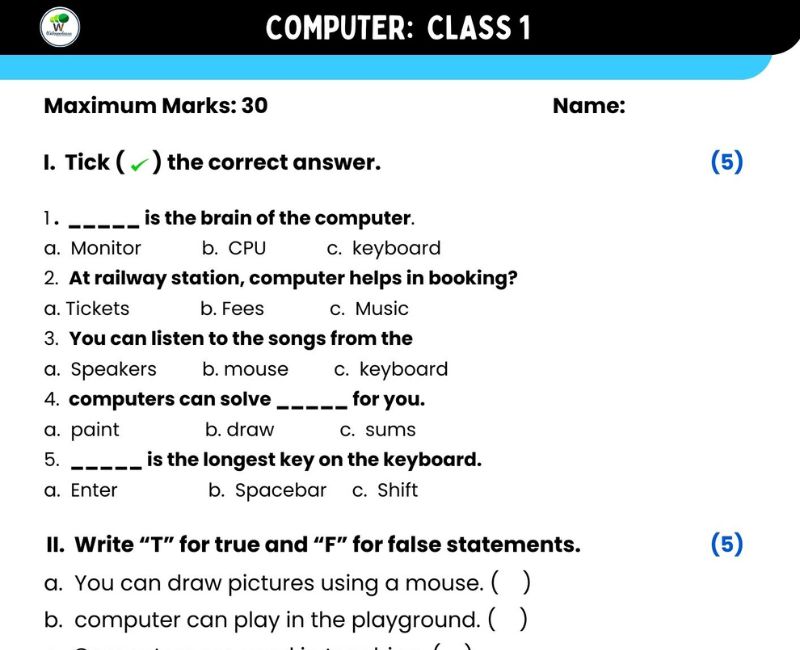
The CBSE Class 1 Computer Question Paper is designed to help young learners practise important Computer Studies concepts in a simple and engaging way. It covers computer parts, uses of computers, keyboard keys, mouse actions, computer safety and MS Paint.
Students can use this resource for examination preparation, homework, revision and self-assessment. The printable worksheet supports written practice, while the interactive online quiz helps children check their understanding.
Computer Studies in Class 1 introduces basic digital skills. Students learn to identify the monitor, keyboard, mouse and system unit. They discover how computers are used in schools, hospitals, banks, shops and homes.
The keyboard chapter introduces alphabet keys, number keys, Spacebar, Enter and Backspace. The mouse chapter explains pointing, clicking, double-clicking, dragging and scrolling. MS Paint introduces drawing and colouring tools.
This question paper combines written questions with practical activities. Children can identify computer parts, explore keyboard keys, complete a mouse clicking challenge and create a drawing.
Teachers can use this material for classroom assessments, revision lessons and practice tests. Parents can support learning by reading questions aloud and encouraging children to answer independently.
Note: This is a practice sample paper, not an official CBSE-issued examination paper. Individual schools may follow different chapter sequences and assessment formats.
Important Topics for Class 1 Computer Examination
Understand what a computer is and how it helps people.
Identify the monitor, keyboard, mouse and system unit.
Learn how computers help us study, draw and work.
Explore schools, hospitals, banks and shops.
Learn safe startup and shutdown habits.
Practise alphabet, number and special keys.
Learn clicking, double-clicking, dragging and scrolling.
Learn Pencil, Eraser, Shapes and colouring tools.
Chapter 1: Computer – A Machine
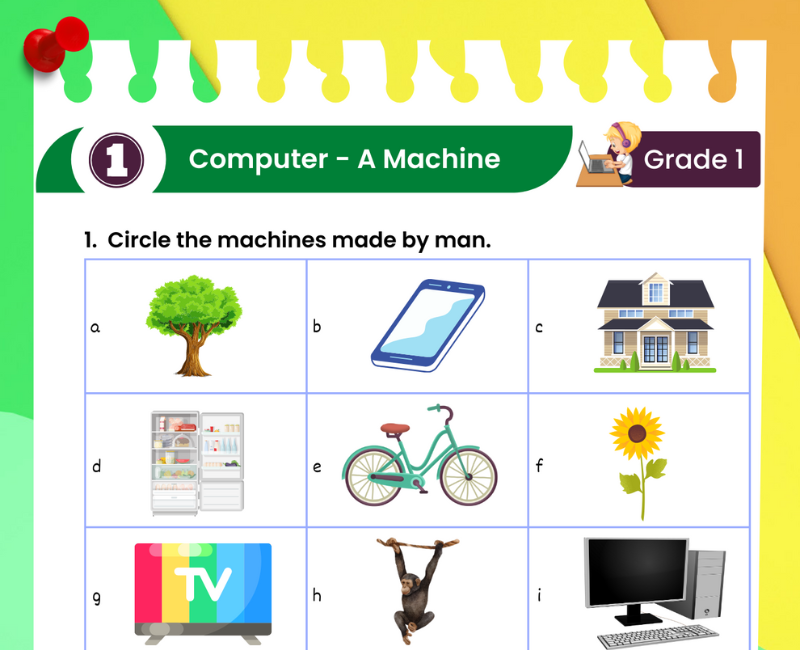
A computer is an electronic machine that follows instructions. It helps us perform activities such as typing, drawing, learning and playing educational games.
Computers can process information quickly. They are useful in homes, schools, offices and many workplaces. A computer needs electricity or battery power to work.
Answer: A computer is an electronic machine that follows instructions.
Chapter 2: Parts of a Computer
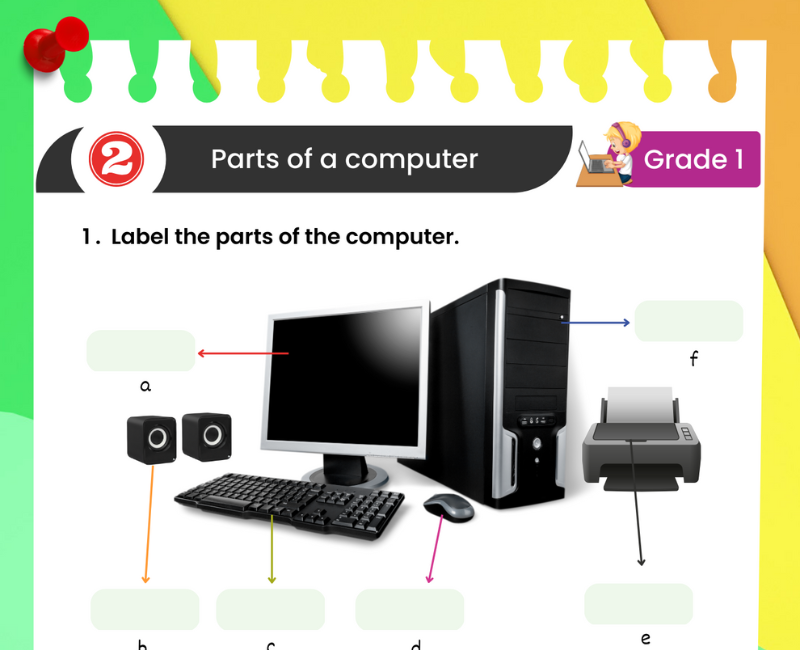
A desktop computer has several parts. Each part performs a different function.
| Computer Part | Function |
|---|---|
| Monitor | Displays pictures and text. |
| Keyboard | Helps us type. |
| Mouse | Controls the pointer. |
| System unit | Contains the main processing components. |
| Speakers | Produce sound. |
| Printer | Prints work on paper. |
Students should practise recognising these parts from pictures and explaining their uses in simple sentences.
Chapter 3: Uses of Computers
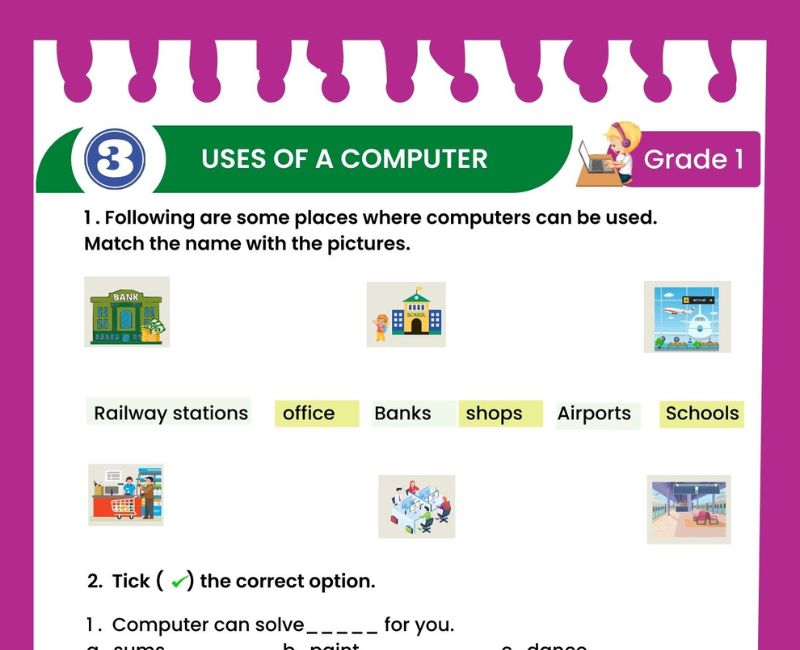
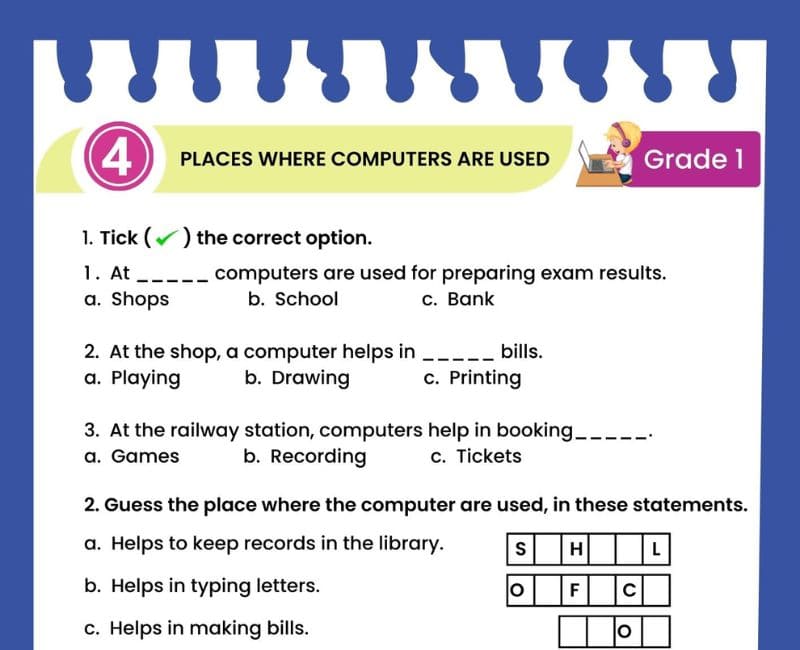
Computers are useful in many places. At school, teachers and students use computers for teaching and learning. At home, people may use them for drawing, studying and entertainment.
Hospitals use computers to maintain patient records. Banks use them to provide banking services. Shops use computers for billing and keeping records of products.
School: Learning and teaching.
Hospital: Patient information.
Bank: Banking services.
Shop: Billing and records.
Home: Learning and entertainment.
Chapter 4: Turning On and Off a Computer
Students should learn how to start and shut down a computer safely. The exact procedure depends on the computer being used.
On a typical desktop computer, we may switch on the required power supply, press the power button, wait for the system to start and sign in if necessary.
Before shutting down, we should save important work. We should then use the operating system's Shut down option instead of suddenly disconnecting the power.
1. Switch on the power supply if needed.
2. Press the computer power button.
3. Wait for the computer to start.
4. Sign in if required.
5. Save work and shut down properly when finished.
Chapter 5: Using the Keyboard
A keyboard is an input device used to type letters, numbers and symbols. It has many keys with different functions.
Used to type letters A to Z.
Used to type numbers 0 to 9.
Inserts a space between words.
Often starts a new line or confirms an action.
Usually removes the character to the left of the cursor.
Helps type capital letters when enabled.
Chapter 6: Using a Mouse
A mouse is an input device used to control the pointer on a computer screen. It helps us select items, open files and move objects in programs.
Clicking means pressing and releasing a mouse button once. Double-clicking means pressing the same button twice quickly.
Dragging means holding down a mouse button while moving the mouse. Dropping means releasing the button after dragging.
Scrolling helps us move through a webpage or document. Right-clicking often opens a menu with available actions.
Chapter 7: MS Paint
MS Paint is a drawing program available on many Windows computers. Children can use it to draw and colour pictures.
The Pencil tool helps create freehand lines. The Eraser removes unwanted marks. The Shapes section includes ready-made shapes such as rectangles and ovals.
Fill with Color adds colour to enclosed areas. Students can practise drawing a house, sun, tree and flower using these tools.
Draw a house with a rectangle and a roof. Add a sun, tree and flowers. Colour your picture and save it.
CBSE Class 1 Computer Sample Paper – Practice Questions
Exercise 1: Multiple-Choice Questions
- Which part displays pictures? (Monitor / Mouse / Keyboard)
- Which device helps us type? (Keyboard / Printer / Speaker)
- Which device controls the pointer? (Mouse / Monitor / Printer)
- Which program helps us draw? (MS Paint / Calculator / Clock)
- Which key inserts a space? (Spacebar / Enter / Caps Lock)
- Which tool removes unwanted marks? (Eraser / Pencil / Shapes)
- Where are computers used? (School / Hospital / Both)
- Which option shuts down Windows properly? (Shut down / Copy / Print)
Show Exercise 1 Answers
1. Monitor; 2. Keyboard; 3. Mouse; 4. MS Paint; 5. Spacebar; 6. Eraser; 7. Both; 8. Shut down.
Exercise 2: Fill in the Blanks
- A computer is an ______ machine.
- The ______ shows pictures.
- The ______ helps us type.
- The ______ controls the pointer.
- The ______ key inserts a space.
- We can draw pictures using MS ______.
- The ______ tool removes unwanted marks.
- We should ______ our work before shutting down.
- Computers are used in schools and ______.
- The ______ produces sound.
Show Exercise 2 Answers
1. electronic; 2. monitor; 3. keyboard; 4. mouse; 5. Spacebar; 6. Paint; 7. Eraser; 8. save; 9. hospitals; 10. speaker.
Exercise 3: True or False
- A computer can be used for drawing.
- A printer is used to type letters into a document.
- A mouse is an input device.
- The monitor displays pictures.
- The Spacebar removes letters.
- MS Paint is used for drawing.
- We should handle computer equipment gently.
- Computers are never used in banks.
- Double-clicking means two quick clicks.
- We should save work before shutting down.
Show Exercise 3 Answers
1. True; 2. False; 3. True; 4. True; 5. False; 6. True; 7. True; 8. False; 9. True; 10. True.
Exercise 4: Match the Following
| Column A | Column B |
|---|---|
| 1. Monitor | A. Insert a space |
| 2. Keyboard | B. Draw pictures |
| 3. Mouse | C. Display pictures |
| 4. Spacebar | D. Control the pointer |
| 5. MS Paint | E. Type letters |
Show Exercise 4 Answers
1-C, 2-E, 3-D, 4-A, 5-B.
Exercise 5: Short-Answer Questions
- What is a computer?
- Name four main parts of a desktop computer.
- Write two uses of computers.
- What is the use of a keyboard?
- What is the use of a mouse?
- What is MS Paint?
- What is the use of the Eraser tool?
- Why should we save our work?
Show Exercise 5 Answers
- A computer is an electronic machine that follows instructions.
- Monitor, keyboard, mouse and system unit.
- Learning and drawing.
- A keyboard helps us type.
- A mouse controls the pointer.
- MS Paint is a drawing program.
- The Eraser removes unwanted marks.
- Saving keeps our work for later use.
How to Prepare for a Class 1 Computer Examination
Students should begin by revising the basic parts of a computer. Teachers can show pictures of a monitor, keyboard, mouse and system unit and ask children to identify each part.
Next, revise the uses of computers in everyday life. Children can explain how computers help us learn, draw, type and perform tasks in different places.
Keyboard revision should include alphabet keys, number keys, Spacebar, Enter and Backspace. Short typing activities can make these functions easier to remember.
Mouse practice should include pointing, clicking, double-clicking, dragging and scrolling. Students can complete the clicking activity on this page for additional practice.
For MS Paint, children should learn the names and uses of the Pencil, Eraser, Shapes and Fill with Color tools. They can practise drawing simple pictures.
After completing chapter-wise revision, students should attempt the printable sample question paper and the 20-question online quiz. Reviewing answers helps identify concepts that need more practice.
Benefits of Solving Class 1 Computer Question Papers
Solving practice question papers helps young learners become familiar with common school assessment formats. Students learn to read simple questions and identify the correct answers.
Multiple-choice questions encourage children to compare options. Fill-in-the-blanks strengthen computer vocabulary, while matching exercises connect computer parts with their functions.
True-or-false questions help identify common misunderstandings. Short-answer questions encourage children to explain basic computer concepts using their own words.
Interactive activities provide practical learning. Students can click computer parts, explore keyboard keys, practise mouse movements and create drawings.
The online quiz allows children to revise several chapters together. Its score and answer explanations provide feedback after submission.
Teachers can use the practice paper to identify areas where students need additional help. Parents can support revision by asking children to demonstrate computer actions instead of only memorising definitions.
Regular practice helps students develop confidence with basic computer devices and prepares them for more advanced digital skills in later classes.
Tips for Parents and Teachers
Revise one computer chapter at a time.
Use pictures to identify computer parts.
Demonstrate keyboard and mouse actions.
Encourage students to explain answers aloud.
Provide short, supervised computer practice sessions.
Review incorrect answers after the quiz.
Encourage safe handling of computer equipment.
Use the sample paper for understanding rather than memorisation.
Related Class 1 Computer Worksheets
Frequently Asked Questions
What topics are covered in Class 1 Computer Studies?
Common topics include computer parts, uses of computers, keyboard, mouse, safe startup and shutdown, and MS Paint.
Is this an official CBSE examination paper?
No. It is a practice sample paper for Class 1 students.
Does this page include an online quiz?
Yes. Students can attempt a 20-question timed quiz and review their answers.
What is a computer?
A computer is an electronic machine that follows instructions.
What are the main parts of a computer?
Common desktop computer parts include the monitor, keyboard, mouse and system unit.
What is the use of a monitor?
A monitor displays pictures and text.
What is the use of a keyboard?
A keyboard helps us type letters, numbers and symbols.
What is the use of a mouse?
A mouse helps control the pointer on the screen.
What is MS Paint?
MS Paint is a computer drawing program.
What is the use of the Spacebar?
The Spacebar inserts a space between words.
What is the use of Backspace?
Backspace usually removes the character to the left of the cursor.
Where are computers used?
Computers are used in schools, homes, hospitals, banks, shops and offices.
How can children prepare for a Computer Studies exam?
They can revise chapters, identify computer parts, practise basic skills and solve sample questions.
Why are interactive computer activities useful?
They help children practise basic computer concepts through hands-on learning.
Can students practise computer questions at home?
Yes. They can use printable worksheets, revision exercises and online quizzes with adult guidance.
CBSE Class 1 Computer Online Quiz – Printable Question Paper PDF and Interactive Practice
Use this CBSE Class 1 Computer question paper with the free online quiz and interactive learning activities. Students can revise computer parts, keyboard keys, mouse actions, safe startup steps and MS Paint. They can answer 20 multiple-choice questions, check their scores and review explanations. The printable Class 1 Computer sample question paper PDF and online activities support revision at home and in the classroom.
↑ Start the Online Computer Quiz Download